Defining groups and assigning controls
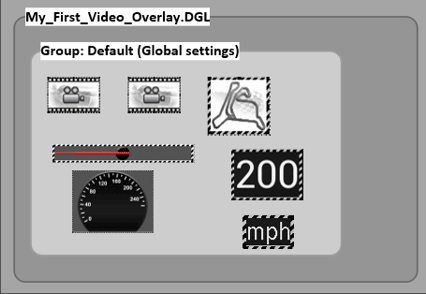
The overlay you designed in the part 1 of this guide consist of the following objects;
- Controls
- The “Default” group (note that the all controls you added to the overlay automatically get assigned to the “default” group)
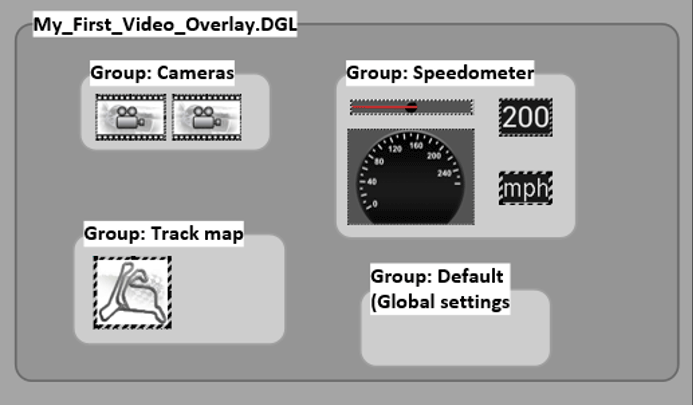
Groups help you to arrange logically related controls together. Let’s define three more groups and change the structure of the overlay as follows:
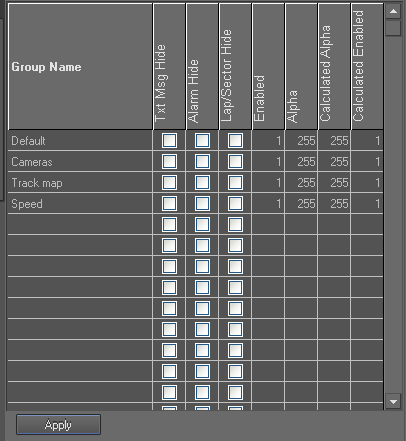
1. Click on the second row of the “Group definition panel” and type “Cameras”.
Then repeat the same to add two more groups starting from third row:
Remember to click the “Apply” button at the bottom of the “Group definition panel” to add (save) these groups to your design.
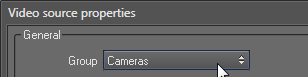
2. Change the “Group” properties of the controls as follows:
a) Change group property of two video source controls to “Cameras”
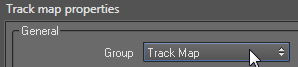
b) Change group property of track map to “Track map”
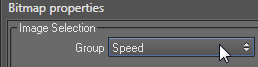
c) Change group property of image needle bitmap and speedometer background bitmap to “Speed”
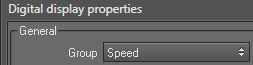
d) Change group property of digital display to “Speed”
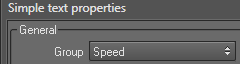
e) Change group property of simple text to “Speed”
f) Save the overlay file.
3. Open the “Video overlay designer” (using the launcher shortcut  under “Video Software” category or using the “Customise overlay”
  button in Video export dialog)
Then switch to the screen that you assigned your overlay.
button in Video export dialog)
Then switch to the screen that you assigned your overlay.
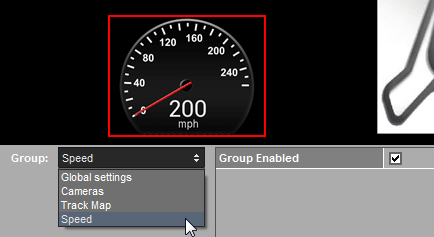
Now there should be four groups listed in “Group” drop down including the “Global settings” (default group).
Each group has a single property called “Group Enabled”. You can use this property to show/hide all controls belongs to a group in the exported videos.
 My basket |
Checkout |
Add to email list
My basket |
Checkout |
Add to email list




 Edit
Edit History
 Print
Print Download (.HTML)
 PDF
PDF