Adding user configurable properties to the groups
In the previous section you defined three groups, assigned controls to them and learned how to enable/disable them using the “Group Enabled” property.
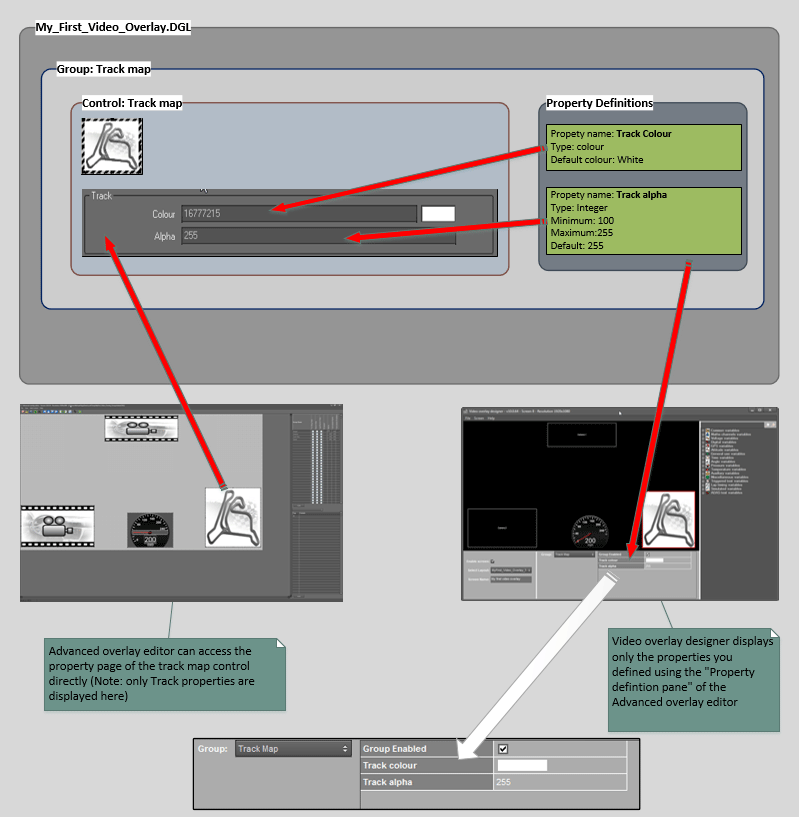
In this section we are going to add two more properties to the track map group to show you how they help us to give users controlled access to the two properties of the track map control.
Let’s start with the “Track map” group which contains a single control. We are going add two properties to this group. Once these properties are added, they will be visible in the Video overlay designer under “Track map” group:
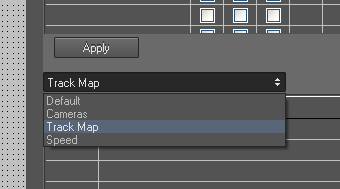
1. Select the “Track map” group using the group drop down of the Property definition pane.
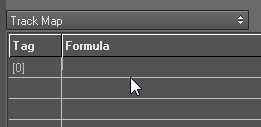
2. Double click on the first row of the “Property definition pane” to open the “Add/Change user property” dialog
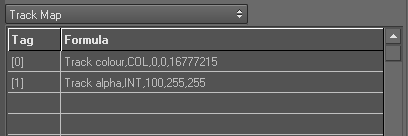
3. Add a new property called “Track colour” and click “Ok” to exit from the dialog.
- Prompt: Track colour
- Type: COL
- Default: 16777215
4. Double click on the second row of the “Property definition pane” to open the “Add/Change user property” dialog again and add another property called “Track alpha”:
- Prompt: Track alpha
- Type: INT (integer)
- Minimum: 100
- Maximum: 255
- Default: 255
5. Click Apply button  at the bottom of the property definition panel to add those definitions to the “Track map” group.
Note that each property definition has a tag associated with it. This tag act as an identifier for the property.
6. Now we are going to bind these two user defined properties to two properties we selected from the track map control.
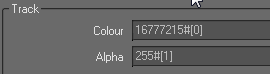
- Open properties dialog of the track map control and change the “Colour” and “Alpha” properties of the track as described below:
- Colour: 16777215#[0]
- Alpha: 255#[1]
7. Open the Video overlay designer again, and switch to the “My first video overlay” screen.
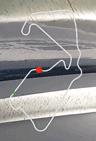
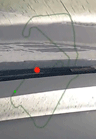
- Change the colour and alpha values of the track map
- “Save and exit” from the application.
8. Export another video using the Analysis video export with the updated overlay and check how the changes are reflected in the exported video.
 My basket |
Checkout |
Add to email list
My basket |
Checkout |
Add to email list




 Edit
Edit History
 Print
Print Download (.HTML)
 PDF
PDF